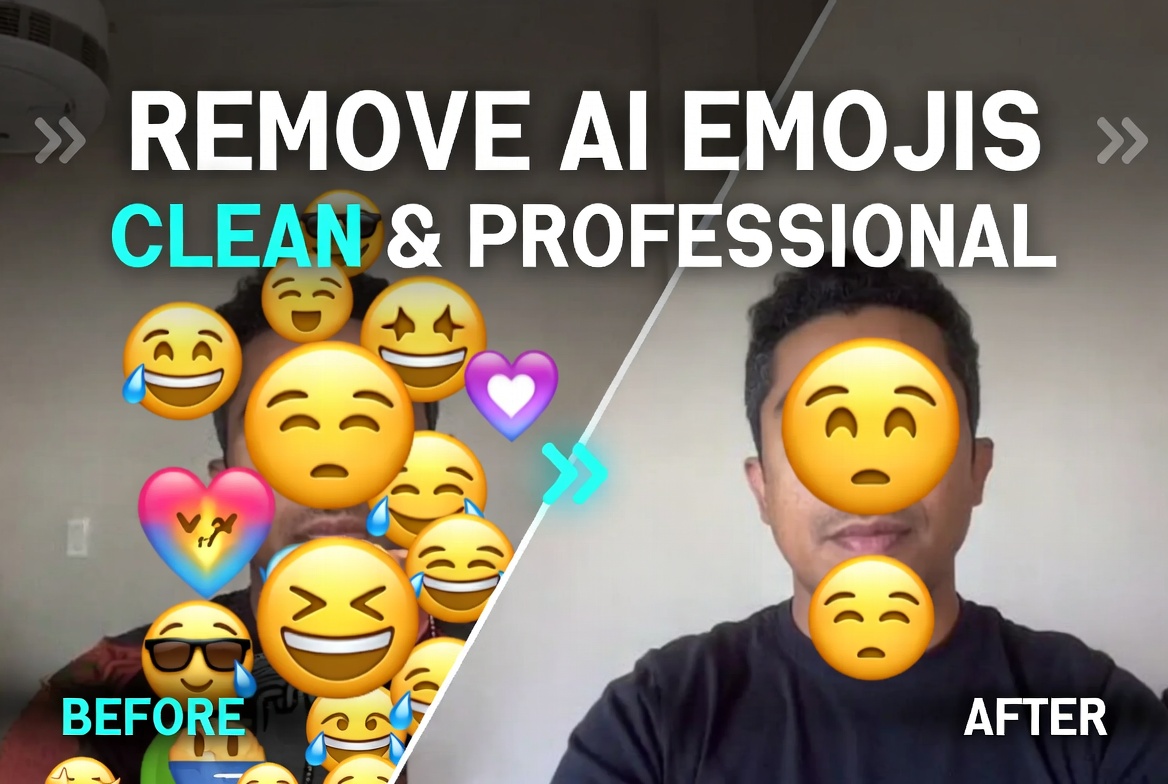
Removing AI-Based Emojis from Pictures
for a Clean, Professional Look
A complete guide to erasing AI-generated emoji overlays from your photos — quickly, freely, and without losing image quality.
In today’s digital world, emojis are everywhere — from social media captions to AI-generated images. But there are times when a photo with emoji overlays simply doesn’t fit the bill. Whether you’re preparing content for a corporate presentation, a professional blog post, or a polished marketing campaign, removing AI-based emojis from pictures can make a world of difference in how your visuals are perceived.
Fortunately, thanks to advances in artificial intelligence, you no longer need to be a Photoshop expert to get a clean, emoji-free image. A range of powerful free tools can do the job in seconds — and we’ll walk you through all of them right here on some4best.com.
Why Remove AI-Based Emojis from Images?
AI image generators like Midjourney, DALL·E, and Stable Diffusion sometimes embed emoji-style symbols, sticker graphics, or decorative overlays into generated images. While these can be fun for personal use, they often create problems in more formal contexts:
- Professional presentations — Emoji-heavy visuals undermine credibility.
- Blog & website thumbnails — Clean images rank better and look more authoritative.
- E-commerce product photos — Shoppers trust uncluttered product visuals.
- Printed materials — Emojis often look pixelated or out of place in print.
- Social media ads — Ad platforms sometimes flag imagery with heavy overlays.
Simply put, a clean image communicates professionalism and intent. The good news? Removing those emojis has never been easier.
How AI Emoji Removal Works
Modern AI-powered image editing tools rely on a technique called inpainting — the process of intelligently filling in a selected area of an image based on the surrounding pixels and patterns. Here’s what happens under the hood:
This technology, once only available in professional software like Adobe Photoshop’s Content-Aware Fill, is now baked into dozens of free web tools accessible to anyone. The results are remarkably natural, even with complex backgrounds.
Best Free Online Tools to Remove Emojis from Photos
Here’s a comparison of the top tools currently available for removing AI-based emojis and unwanted objects from images:
| Tool | Pricing | Best For | Output Quality |
|---|---|---|---|
| Cleanup.pictures | Freemium | Quick single-object removal | ⭐⭐⭐⭐⭐ |
| Adobe Express | Freemium | All-in-one editing + removal | ⭐⭐⭐⭐⭐ |
| Fotor AI Eraser | Freemium | Batch editing & portraits | ⭐⭐⭐⭐ |
| Remove.bg Objects | Free (limited) | Simple overlays | ⭐⭐⭐⭐ |
| Inpaint Web | Free | Detailed manual brushwork | ⭐⭐⭐⭐ |
| Canva Magic Eraser | Pro only | Design workflow users | ⭐⭐⭐⭐⭐ |
For most users, Cleanup.pictures or Adobe Express will be the go-to choice — they offer the best balance of quality, speed, and free access.
Step-by-Step: How to Remove Emojis from a Photo
Follow these simple steps to get a clean, emoji-free image using any of the tools listed above (we’ll use Cleanup.pictures as the example):
Choose Your Tool
Visit cleanup.pictures in your browser. No account is required for basic use. The interface loads instantly.
Upload Your Image
Click the upload area and select the photo containing the AI-based emoji overlay. Supported formats include JPG, PNG, and WebP.
Paint Over the Emoji
Use the brush tool to paint over the emoji or sticker you want removed. Adjust the brush size for precision on small elements.
Run the AI Removal
Hit the Erase button. The AI processes the image in seconds, intelligently reconstructing the area beneath the emoji.
Review & Download
Check the result. If satisfied, click Download to save your clean, emoji-free image in full resolution.
Key Benefits of Clean, Emoji-Free Images
Clean images instantly elevate the perceived quality of your content and brand.
Search engines favor high-quality, original images. Clean visuals improve image search rankings.
Ad platforms are less likely to reject images that are free of overlapping graphics.
A clean base image can be repurposed across many contexts without any further editing.
Pro Tips for Getting the Best Results
Use High-Resolution Source Images
AI inpainting tools perform significantly better on high-resolution images. A larger pixel count gives the algorithm more data to reconstruct a natural-looking fill. If possible, always work with the original, uncompressed image file.
Work Layer by Layer
If your image contains multiple overlapping emojis, remove them one at a time rather than all at once. This gives the AI a cleaner, more accurate context for each individual removal pass.
Zoom In for Precision
Most tools allow you to zoom into the image before brushing. Use this feature to paint more precisely around the emoji edges — especially important when the emoji overlaps a face, text, or intricate background detail.
Check for Ghosting Artifacts
After removal, zoom in at 100% to check for any lingering halos, blurring, or mismatched texture patches. If you spot any, re-run the removal on just that small area to clean it up.
Frequently Asked Questions
Conclusion
Removing AI-based emojis from pictures doesn’t have to be complicated or expensive. With the right free tools and a clear step-by-step process, you can transform any emoji-cluttered AI image into a polished, professional visual in just a few minutes. Whether you’re cleaning up images for your blog, social media, or a client project, the power of AI inpainting is now firmly in your hands.
Try one of the tools above today and see the difference a clean image can make. And if you found this guide helpful, explore more AI tips and image editing tutorials right here on some4best.com.
Ready to Clean Up Your Images?
Explore more AI image tools, tutorials, and tips on some4best.com — your go-to source for what’s trending in tech.
Explore More Guides →